

Webhooks
Learn how to configure, secure, and monitor webhooks for an API integration in the Blazelock dashboard.
Webhooks let Blazelock send scan updates directly to your system as HTTP POST requests. They are especially useful for asynchronous integrations where your application should react automatically when a scan is submitted, completed, or fails.
This page explains how to configure webhooks in the Blazelock dashboard. For payload structures, headers, and validation details, continue with the technical webhook reference.
Why use webhooks?
Webhooks are useful when your application should react to scan progress without repeatedly checking the API for updates.
Typical benefits include:
- Receiving scan updates in near real time
- Reducing unnecessary polling requests
- Triggering follow-up workflows automatically after relevant scan events
- Keeping your own systems aligned with the latest scan state
If you are still deciding between polling and event-driven delivery, see Polling vs. webhooks.
Configure webhooks
Use the Webhook section inside your API integration to enable or update the configuration.
Open the API integration detail page and go to Webhook.
Switch the webhook status to Enabled.
Enter your endpoint URL.
Use a public HTTPS URL that can receive POST requests from Blazelock. Localhost endpoints are not accepted.
Select the events your endpoint should receive.
Save the changes.
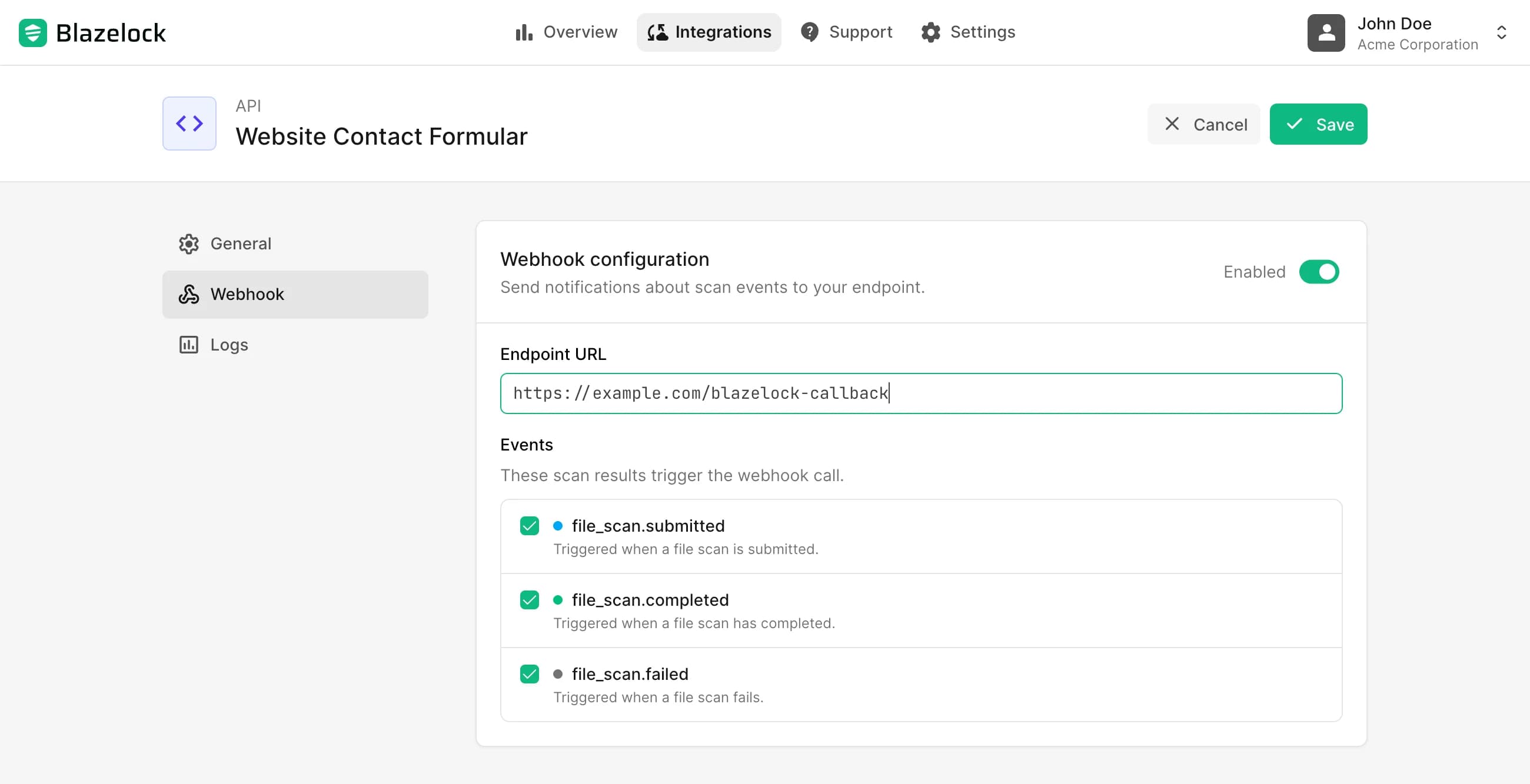
You can update the webhook URL and selected events at any time.
If you disable webhooks and save the integration, Blazelock stops sending webhook deliveries for that integration immediately.
Available events
The dashboard lets you subscribe to these scan events:
file_scan.submitted: Triggered when a new file scan is submitted through the APIfile_scan.completed: Triggered when a file scan has completed and the result is availablefile_scan.failed: Triggered when a file scan could not be completed because of an error
Use the API reference when you need the full event schema, example payloads, and header definitions.
Find and manage the webhook secret
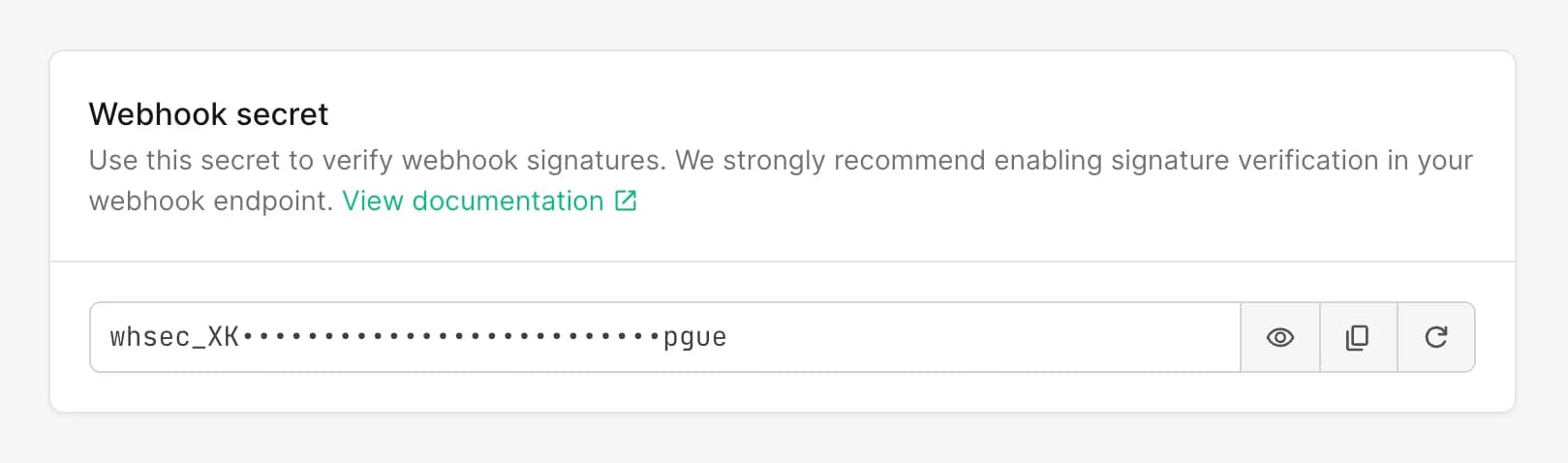
Once webhooks are enabled, the dashboard shows a Webhook secret section for the integration.
Use this secret to validate the X-Blazelock-Webhook-Signature header that accompanies each delivery. We strongly recommend implementing signature verification before processing webhook payloads. The full validation flow is described in Signature Validation.
In the dashboard, you can:
- Reveal the current secret
- Copy the secret for your server-side configuration
- Regenerate the secret if you need to replace it
Regenerating the webhook secret takes effect immediately. From that moment on, all new webhook deliveries are signed with the new secret, and the previous secret becomes invalid immediately.
Monitor webhook deliveries
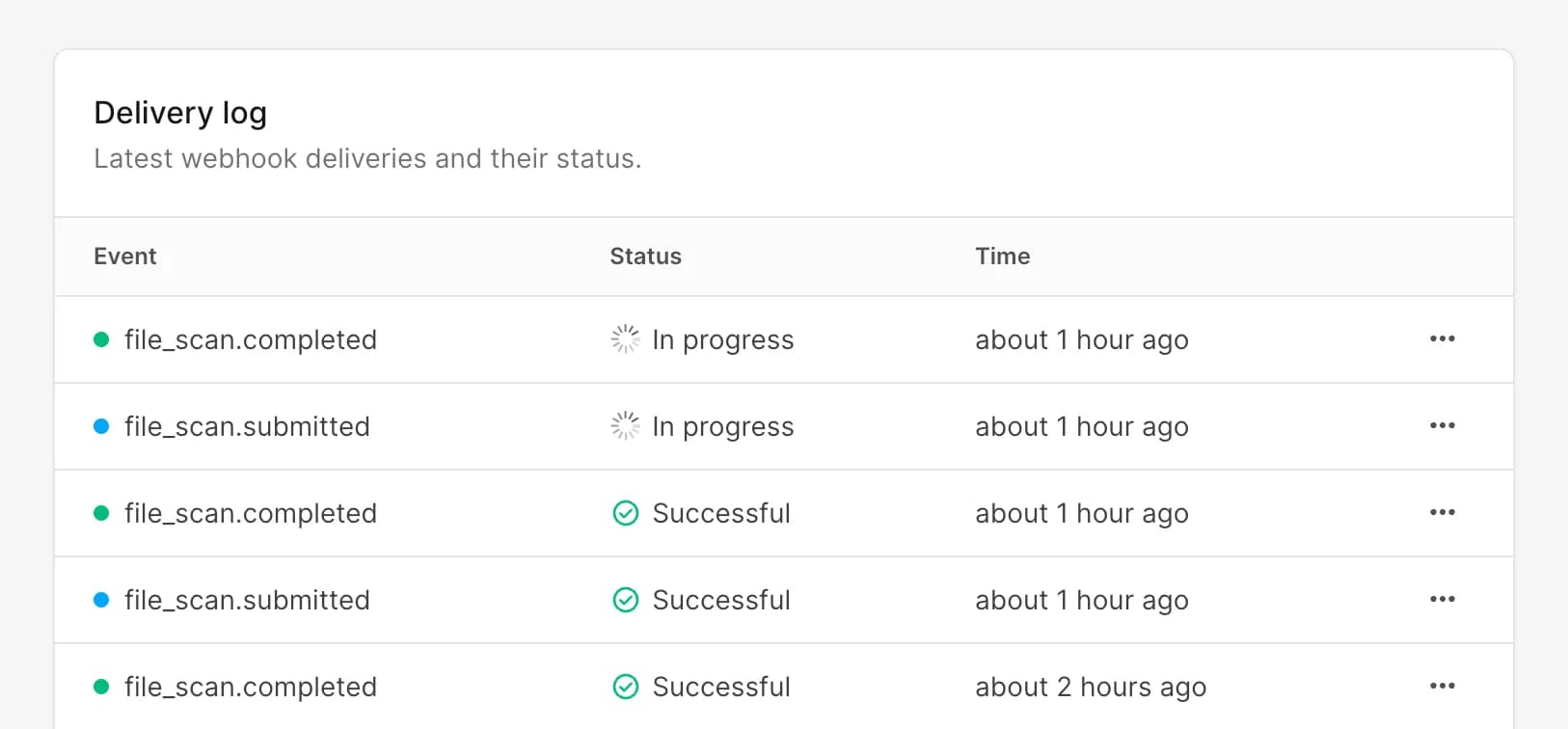
The Delivery log lists deliveries from the last 30 days. It remains available when webhooks are disabled so you can review earlier deliveries.
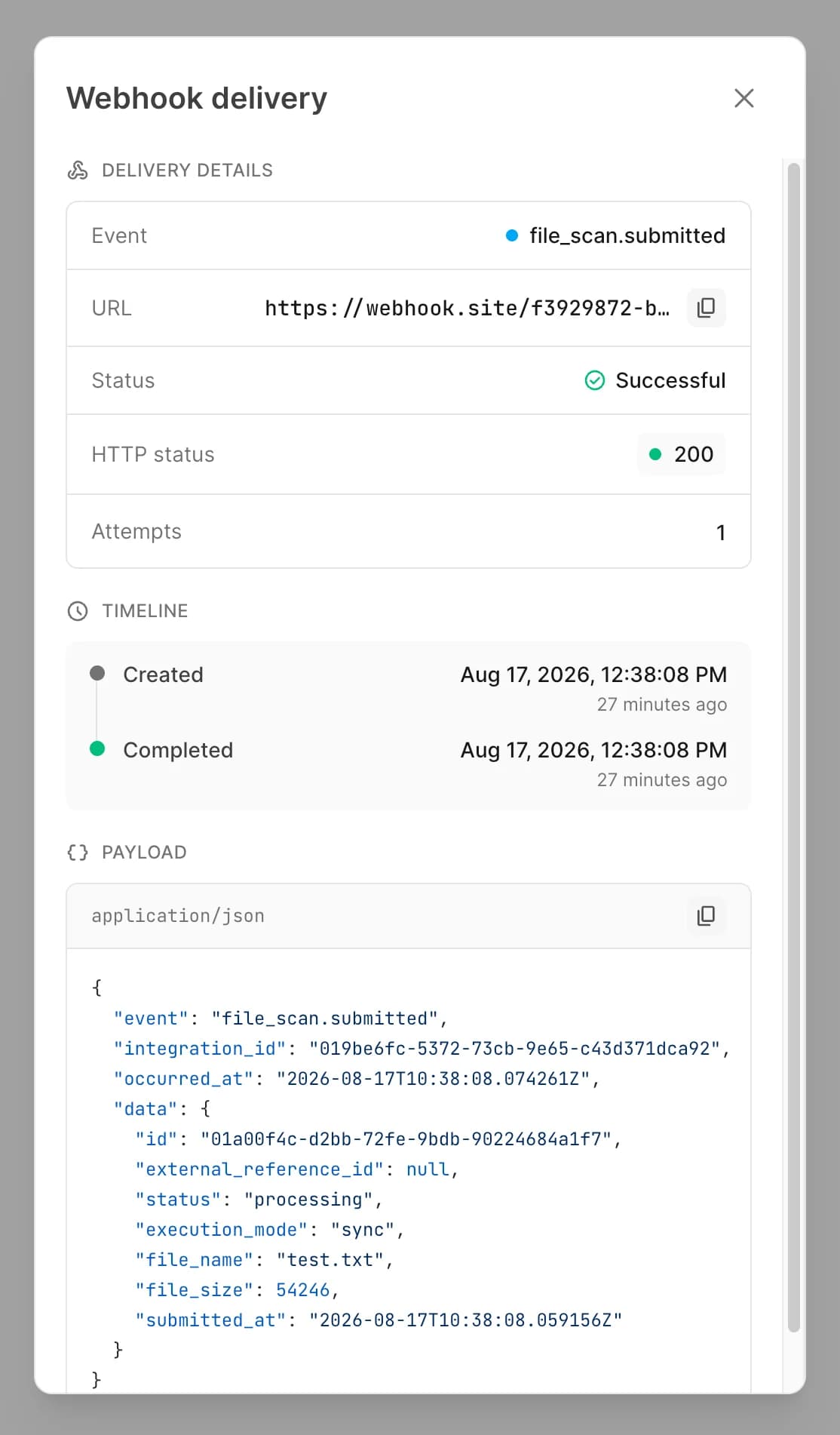
The table shows the webhook event, its current delivery status, and when the delivery was created. To view the complete delivery record, open the row's actions menu and select Open details.
Delivery statuses
| Status | Meaning |
|---|---|
In progress | The delivery is being processed or another automatic attempt is scheduled after a failure. |
Successful | The endpoint accepted the delivery and the process is complete. |
Failed | The delivery could not be completed after all attempts. |
Blazelock treats every non-2xx response, redirect, timeout, or connection error as a failed attempt. If retries remain, the log shows the current number of attempts and when the next attempt is scheduled. For the complete retry schedule, see Delivery & retries.
Delivery details
The details dialog contains:
- The webhook event and delivery URL
- The current status and number of attempts
- The latest HTTP response status, when the endpoint returned a response
- A timeline with the creation time, next scheduled attempt, and completion time when applicable
- The exact JSON payload sent to the endpoint
Related technical documentation
Use the API reference for the implementation details behind the dashboard settings:
- About Webhooks for the delivery model, retries, and general webhook behavior
- Signature Validation for verifying signed requests securely
- Polling vs. webhooks for choosing the right result retrieval pattern
- Webhook event pages for schemas and sample payloads